Private by design
Every conversion happens on your device. Nothing is uploaded, stored, or seen by anyone — not even us. A real privacy win for your photos.
HEIC, JPG, PNG, WebP, AVIF — convert photos and screenshots in seconds. Files never leave your device, so your images stay yours.
Drag & drop images here or
HEIC · JPG · PNG · WebP · AVIF — up to 200 files at once
Every conversion happens on your device. Nothing is uploaded, stored, or seen by anyone — not even us. A real privacy win for your photos.
No server round-trip means conversions start instantly and finish at full device speed. Large batches finish in seconds, not minutes.
Convert up to 200 images at once and download them all as a single ZIP. Perfect for clearing out a phone full of HEIC files.
No accounts, no watermarks, no daily caps. Use it as often as you like, for free. Your images stay untouched and uncompressed quality-wise.
No servers. No uploads. No copies of your photos anywhere but on your own device. Here's what actually happens when you convert:
Use the button above or drag and drop. The files open from your own computer or phone — they don't go anywhere.
A small program inside the page (called WebAssembly, or WASM) reads and converts your images right inside the browser tab. Your device is both the workshop and the delivery truck.
The converted files save straight back to your device. The originals stay exactly as they were — nothing is altered, copied, or kept by anyone.
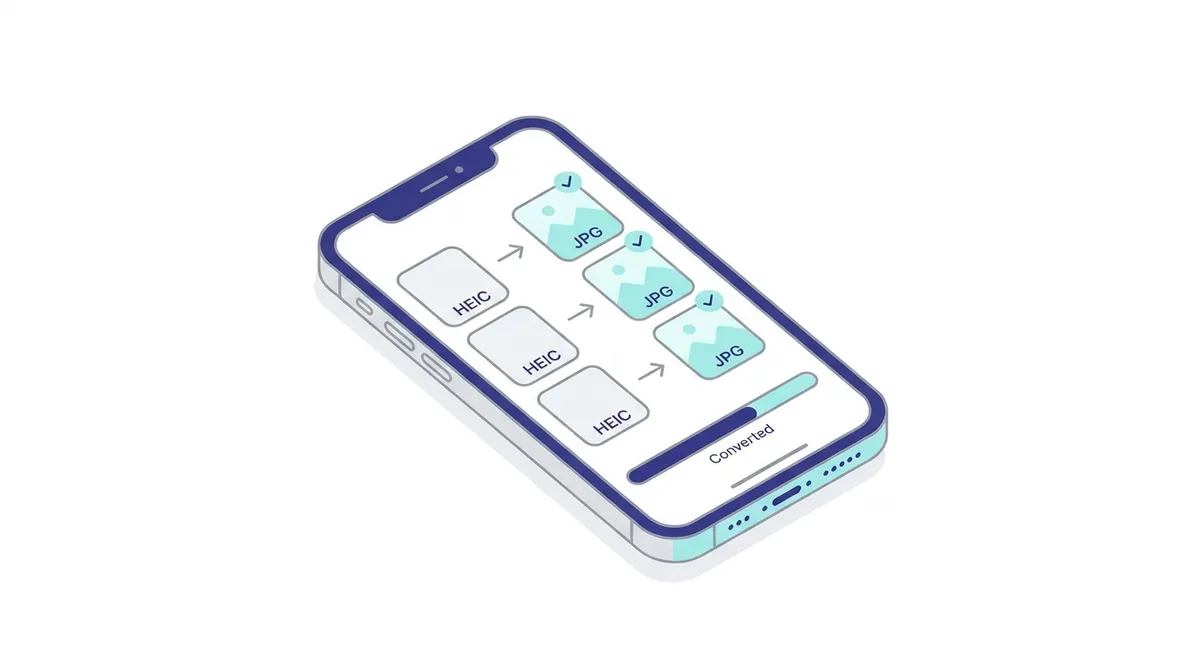
Struggling with HEIC photos that won't open anywhere else? Here's the fastest way to convert on your iPhone — no extra apps.
Windows can't read HEIC by default. Convert them to JPG in your browser in seconds, no installs required.

Preview converts HEIC one at a time — painful for a full photo library. Here's a better way to batch convert on macOS.
A few AI tools are in the works — same promise, your images never leave your device. Here's what's coming:
One click to cut any subject out of its background. Runs locally on your device — nothing uploaded.
Enlarge small, blurry photos with AI that fills in detail naturally — twice the size, no pixelation.
Fix exposure, color and sharpness automatically with one tap. Your photos never leave your device.
We're shipping these without compromising the core promise: 100% on-device processing. No account, no upload, no watermark.
Yes — the conversion itself is free and always will be. Because the heavy lifting happens on your device rather than on our servers, we don't have per-conversion costs, which is why there's no paywall, no watermark, and no sign-up. If we ever need to charge for something (like the AI tools we're working on), it will be clearly optional — the core converter stays free.
No. Your photo's trip is short: your device → browser → back to your device.
That's the whole journey. Nothing is uploaded, nothing is stored, nobody sees them. In, convert, out. Done.
HEIC (High Efficiency Image Coding) is Apple's modern photo format. It produces files about half the size of JPG at the same quality, but it isn't supported everywhere. JPG is the universal format that works on every device and website.
JPG is a compressed format, so there is some quality loss compared to the original HEIC. We use a high-quality setting by default (92%) which looks visually identical to the original for most photos. For lossless output, choose PNG instead.
Up to 200 files per batch. Your browser works through them one by one, right on your device — no uploading, no queue. Download each file as it finishes, or grab them all as one ZIP at the end.
All modern browsers: Chrome, Edge, Firefox, Safari and Opera. HEIC conversion works natively on Safari, Chrome for Windows and Android. On Firefox and Linux, we use a built-in decoder (a small add-on loads automatically the first time).